
Assets

Filelist
This is where all your documents, PDFs, jpegs and PNGs are stored on your website. It's important to keep this well-organised so you can easily find what you need.
The File List manages all the assets used throughout the site – whether they are images, pdf’s, word documents, videos etc. Think of it as the hard drive of the website.
The File list allows you to create and upload all the files you wish to use. To allow for ease of use, it is recommended to create logical and clear labelling of folders and file.
To create additional folders use the create a new icon.
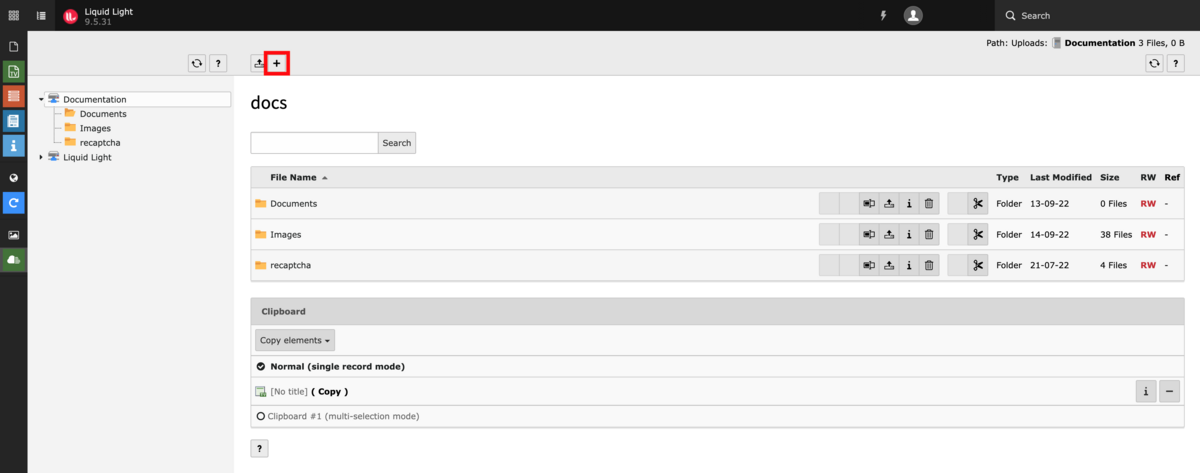
To upload new files, use the upload icon
Click on the ‘Select Files’ button and browse to where the files are stored on your local machine. You can upload multiple images at the same time, providing they do not exceed 8Mb in total.

Updating file information
Once the files have been uploaded, it is possible to add some additional information
Clicking on the edit button you can add metadata and alt text from an accessibility and SEO point of view.
The Rename button allows you to update how your file name is displayed. By default TYPO3 will show the file name in full – this allows you to add a more user-friendly name for downloads.
Document Categorisation
You can categorise your documents and images. Open the document or image and there will be a grey tab 'Categorisation'. Select the appropriate categories that this document relates to. This instructs Typo3 where to place the document on the front end.
How to add the same document in a different language
Click on the flag icon to upload the different version of a document. Typo3 will then automatically display this on the french version of a page.