
Introduction to the BackOffice
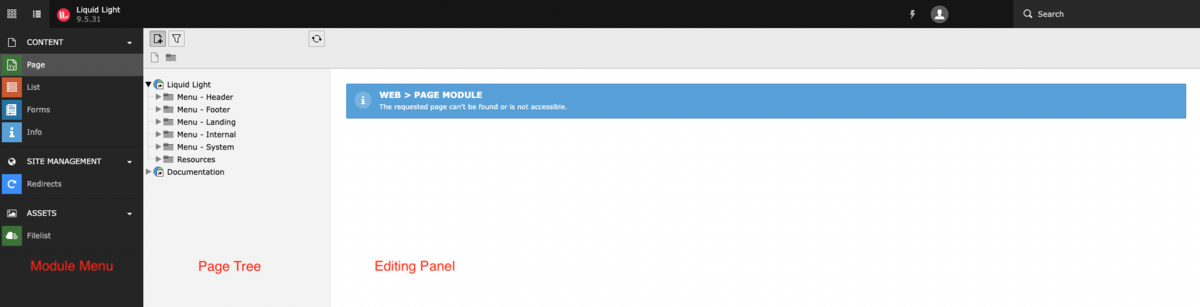
The Typo3 BackOffice has a modular interface: depending on which section of the Back Office you are currently viewing the interface will be split into either two or three columns.
When looking at the three-column interface:
- Modules menu: The module panel lists the CMS modules for managing the site. As a user, you will choose different modules for different tasks on the site.
- Page tree: This panel displays a hierarchical tree structure of the site. This is where you will manage the pages within the site.
- Editing panel: The editing panel is where you will edit content and settings within the CMS. This panel will update depending on which module you are using and what page you have selected.
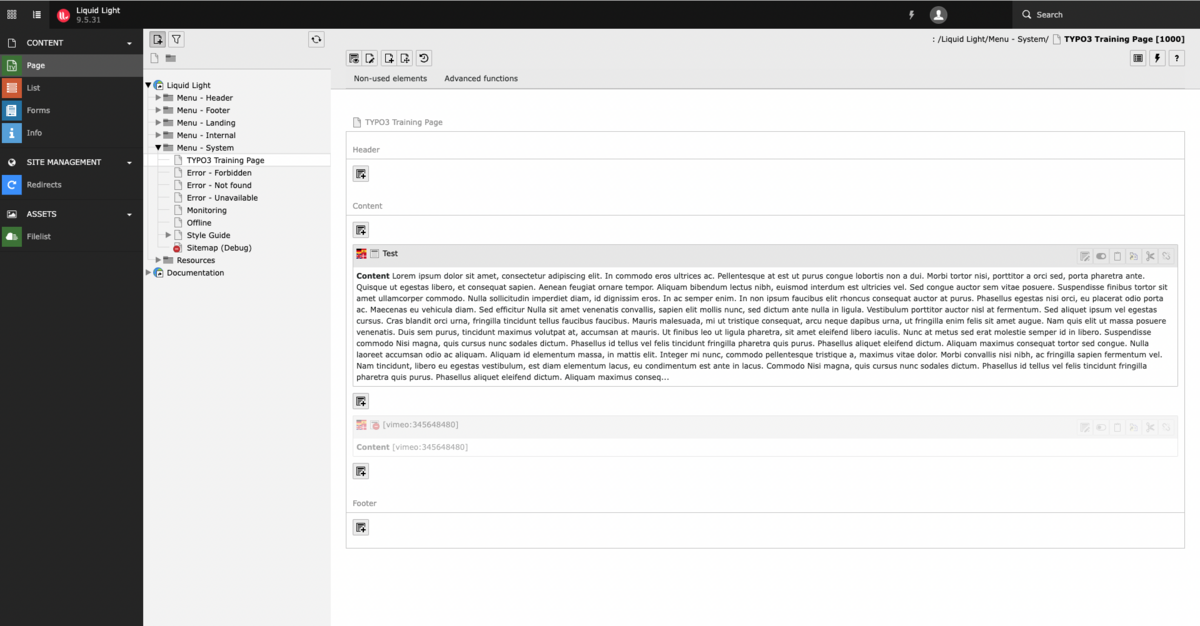
Selecting a module (by clicking on it) will update the panels to its right with relevant options. For some modules, the Page Tree panel will not be relevant and it will therefore not be displayed.
Selecting a page (by clicking on it) will update the display to the relevant content or options.
Note
- The modules list will vary depending on your access privileges – An administrator account will have more features than an editor account.
- The list of pages may be restricted due to the user's access privileges – a user may see the entire site tree, however, they may only see a small section of the site structure if their account is restricted.
Multi-user environment
Typo3 is a multi-user environment. This means that multiple content editors can be working in the BackOffice at the same time. Multi-user environments raise a number of complexities. To prevent content editors from overwriting each other’s work, Typo3 will flag pages that are currently being worked on by other editors:
When someone else is editing a page, a small icon will appear in the page tree. If you open the page, the top of the editing panel will display a message telling you who else is editing the page.
It is recommended that you do not edit a page that is currently being worked on by another content editor as it is very likely that the changes you make will be overwritten.
Module Menu
The module menu is located on the left side of the BackOffice. It contains a number of different links or ‘modules’, which allow you to gain access to different areas of the Back Office. You will have Content, Site Management, and Assets.
- Content: This section contains the most important modules as they are the ones that allow you to interact with the contents of the website.
- Site Management: This section contains the user account management module, which will allow you to alter the settings of your Back Office account.
- Assets: This section contains the File Manager which allows you to manage the files (images, PDF and Word documents, etc.) which are used as part of the contents of the website.
These sections can be collapsed or expanded by clicking on the section title.
You can access each module of the modules menu by clicking its title; the module that is currently selected will be highlighted in grey.
The only headings in this menu that we’ll be using are Page (which allows you to find and edit pages) and the File Manager – everything else you shouldn’t need. However, we will tell you about all the sections so you are fully informed.